
Lists
Use Lists to segment contacts and companies into meaningful groups for outreach, automations, and reporting. There are two types of lists:
- Static lists — fixed membership you can add/remove manually or via imports.
- Smart lists — rule-based segments that automatically update when data changes.
Why use Lists?
- Segment for targeted campaigns, automations, and reporting
- Keep outreach organized with saved segments the team can share
- Trigger workflows when people or companies join/leave a segment
What’s Included with Lists?
- Create & manage both Static and Smart lists
- Filters & rules for fields, engagement metrics, and associations
- Start automations directly from a list
- Membership change triggers for when contacts/companies are added or removed
How to Use Lists
Create a List
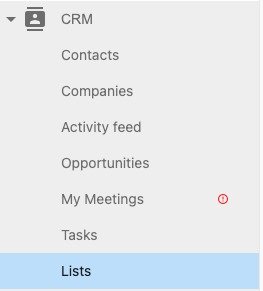
- Go to CRM > Lists.
- Click New list and choose Static or Smart.
Create a Static List
- Select Static and pick the object type (Contacts or Companies).
- Add members from filters or search results in the Contacts / Companies tables.
- Name the list and click Create.
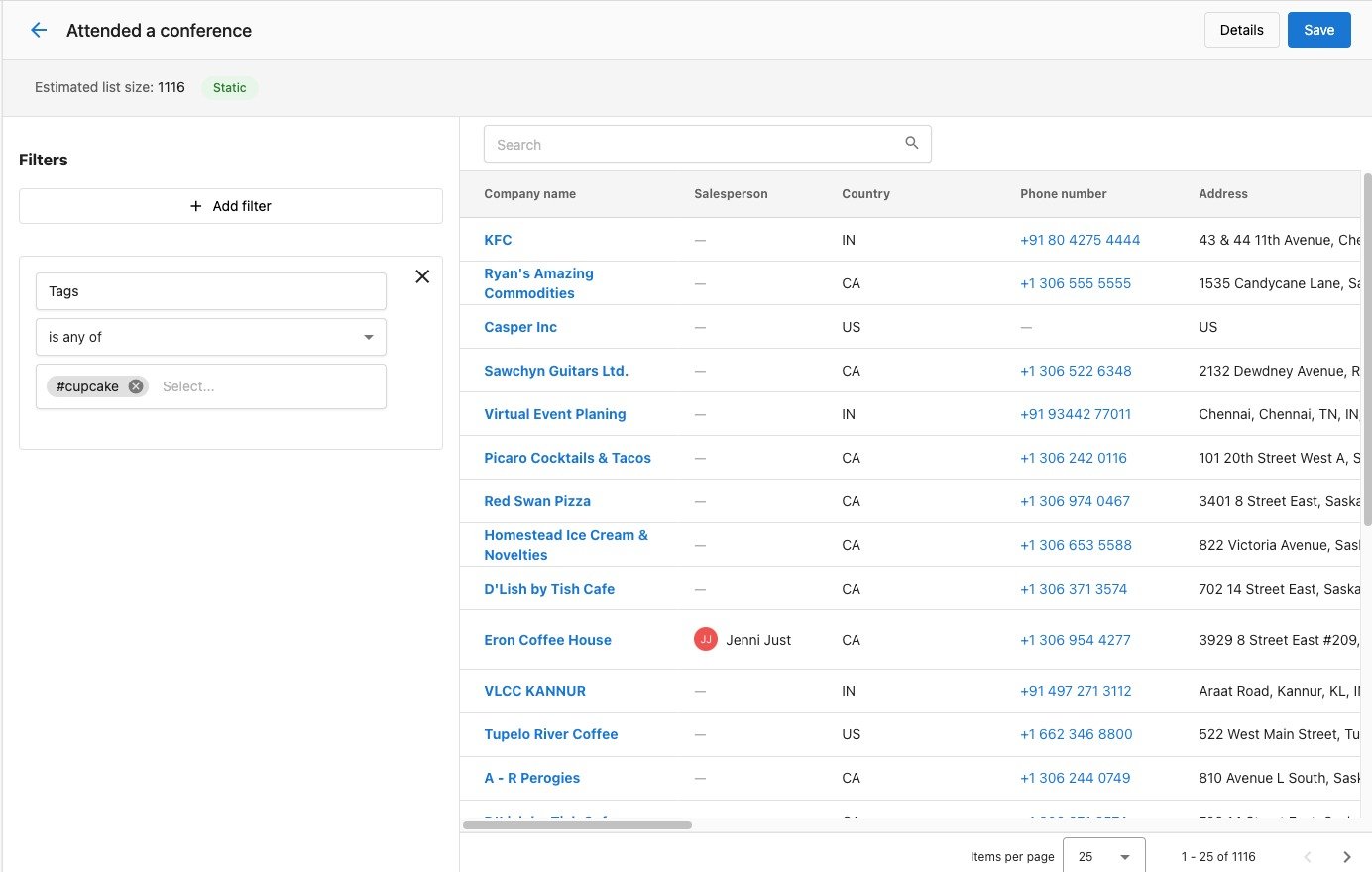
Tip: Use tags and saved searches to move the right selections into static lists for one-time targeting.
Create a Smart List
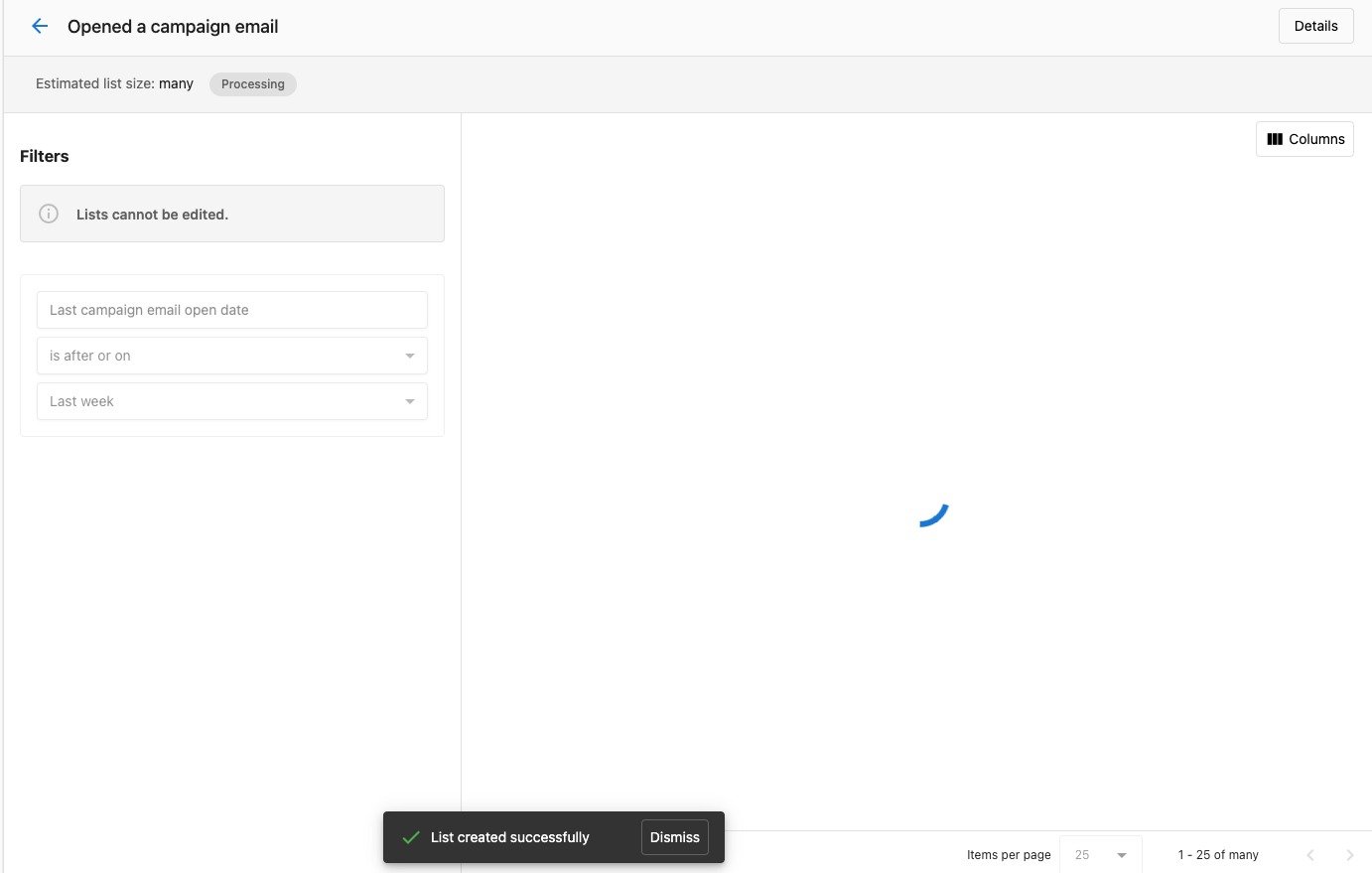
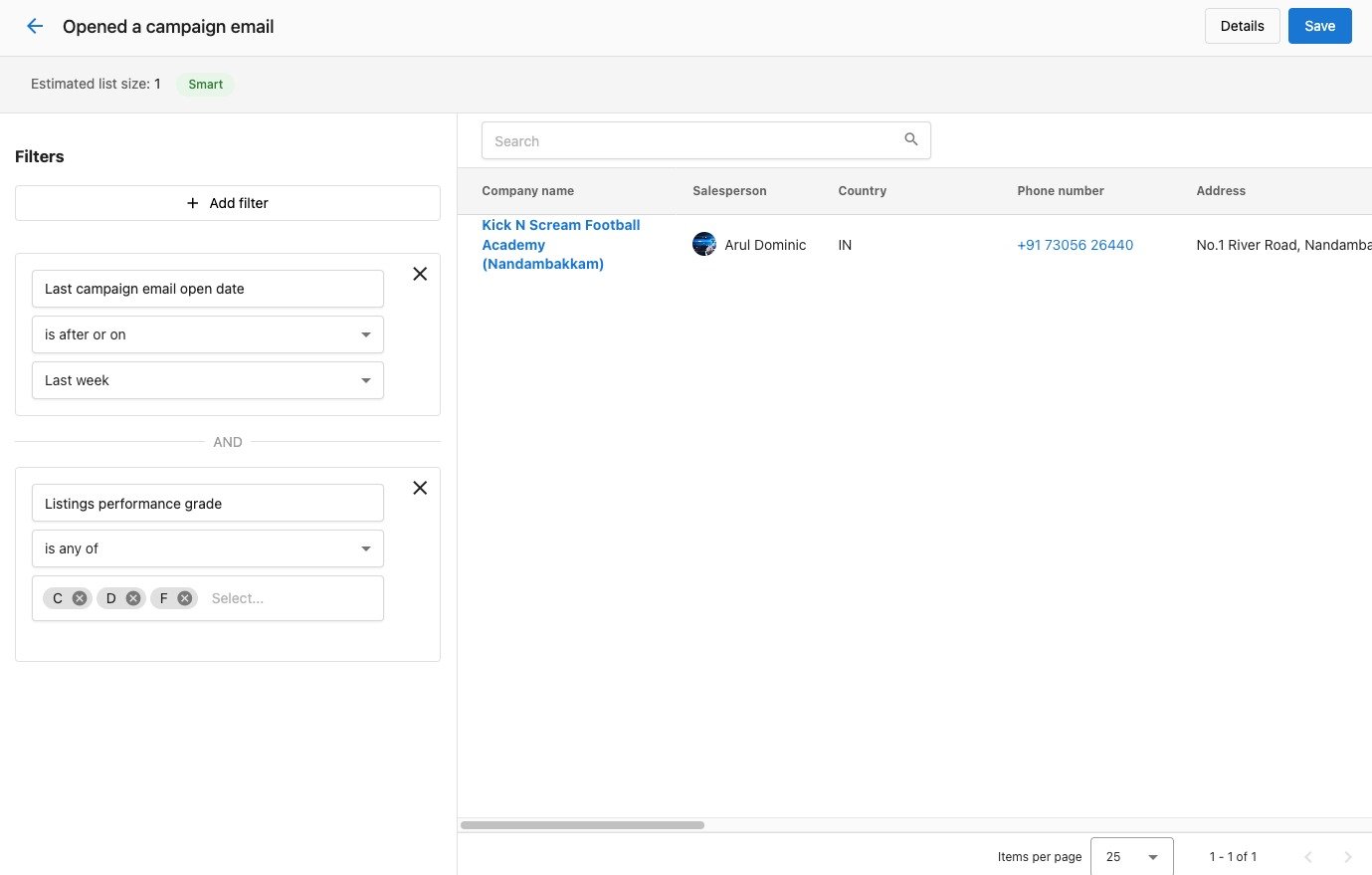
- Define rules under Criteria. Membership will update automatically as data changes.
- Choose object type: Contacts or Companies.
- Preview results and click Create.
Start an Automation from a List
- Open a list and select Start automation.
- Choose a flow (e.g., nurturing sequence, SMS follow-up, data update).
- Review settings and start.
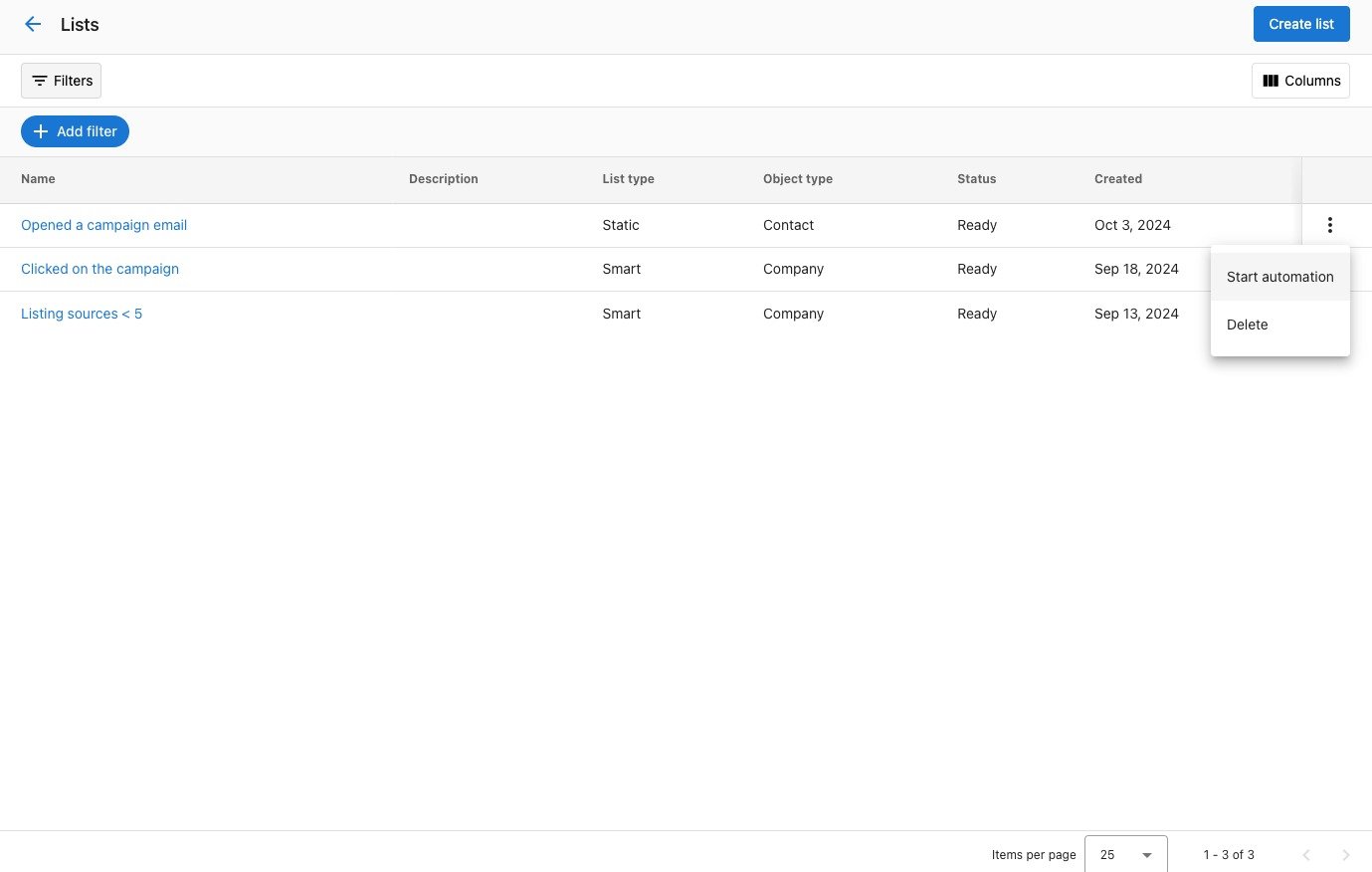
Heads up: When you start an automation from a list, new members can trigger it again if your flow is configured to run on entry.
Automate When Membership Changes
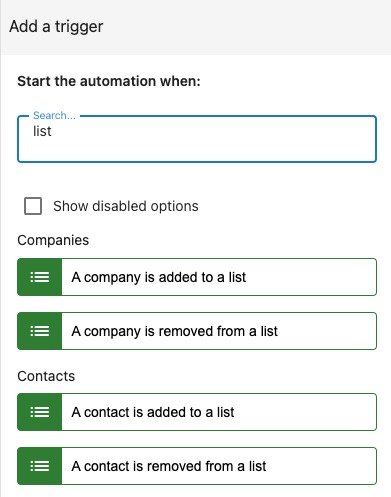
- When a contact is added to a list — send a welcome/SMS, assign an owner, or create a task.
- When a contact is removed — stop campaigns or move to a re-engagement list.
- When a company is added — notify the account owner or update fields automatically.
- When a company is removed — pause sequences and tag for review.
Delete a List
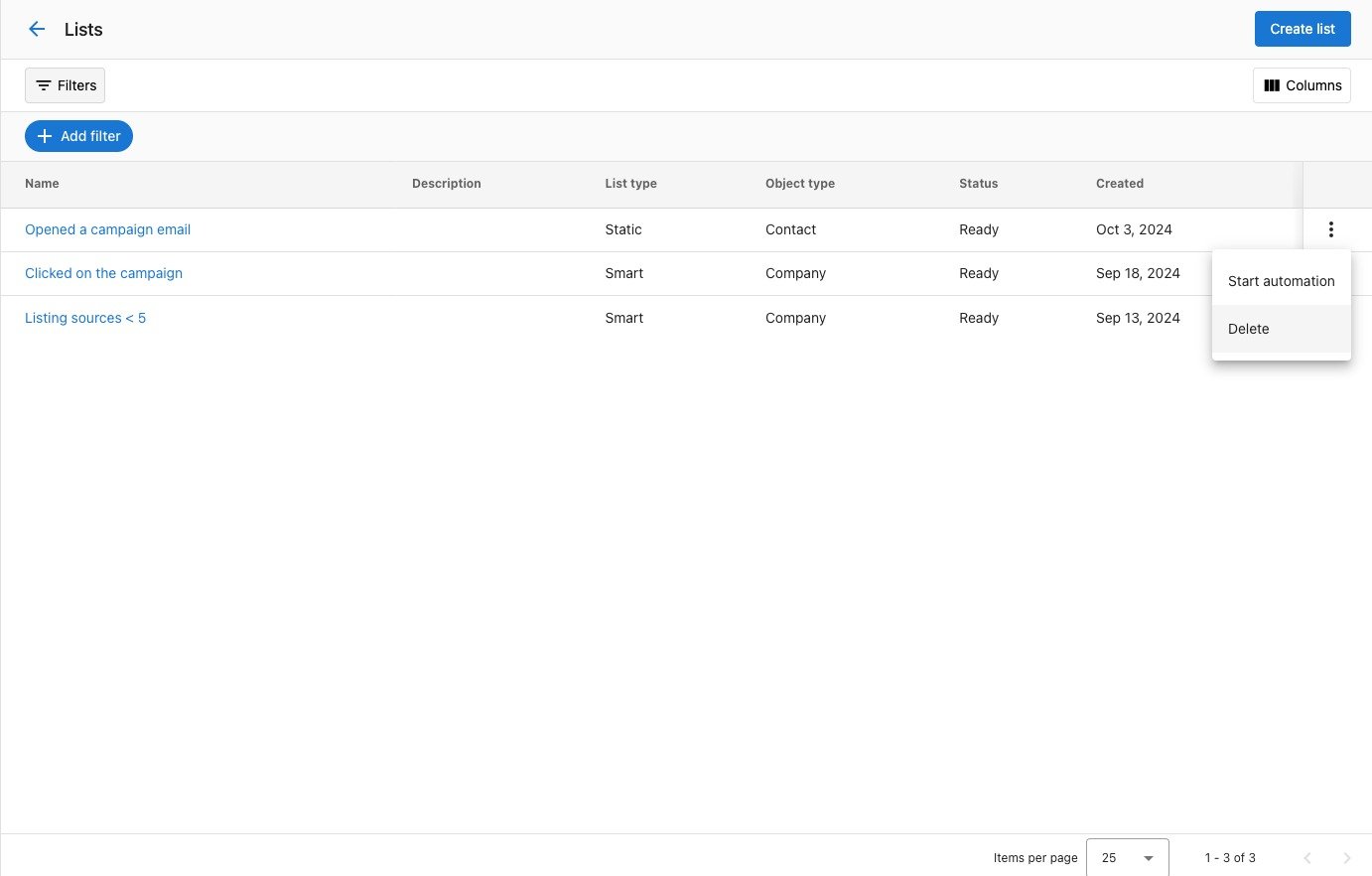
- Go to Lists, select the list, then click More > Delete.
- Confirm the deletion.
Frequently Asked Questions (FAQs)
Can I add contacts and companies into the same list?
Lists are created for a single object type. Select Contacts or Companies when you create the list.
What’s the difference between Static and Smart lists?
Static lists have fixed members you add/remove manually. Smart lists are rule-based and update automatically as records meet (or no longer meet) the criteria.
Can I trigger automations from a list?
Yes. Start automations directly from any list, or trigger flows when membership changes.
Previous: Tasks
Next: Leaderboard