
Forms
Use Forms to capture leads from your website directly into the CRM. Embed a form on any page, create the contact automatically, start a conversation in Inbox, and trigger automations for instant follow-up.
Why use Forms?
- Convert website visits into contacts automatically
- Reduce manual data entry with mapped fields and defaults
- Trigger automations with SMS/email nurturing, campaigns, and tasks
- Improve data quality with reCAPTCHA and UTM capture
What’s included
- Form Builder with configurable fields and defaults
- Design controls for container, fonts, and button
- reCAPTCHA integration for spam protection
- Embed code for easy installation on any site
How to Use Form Builder
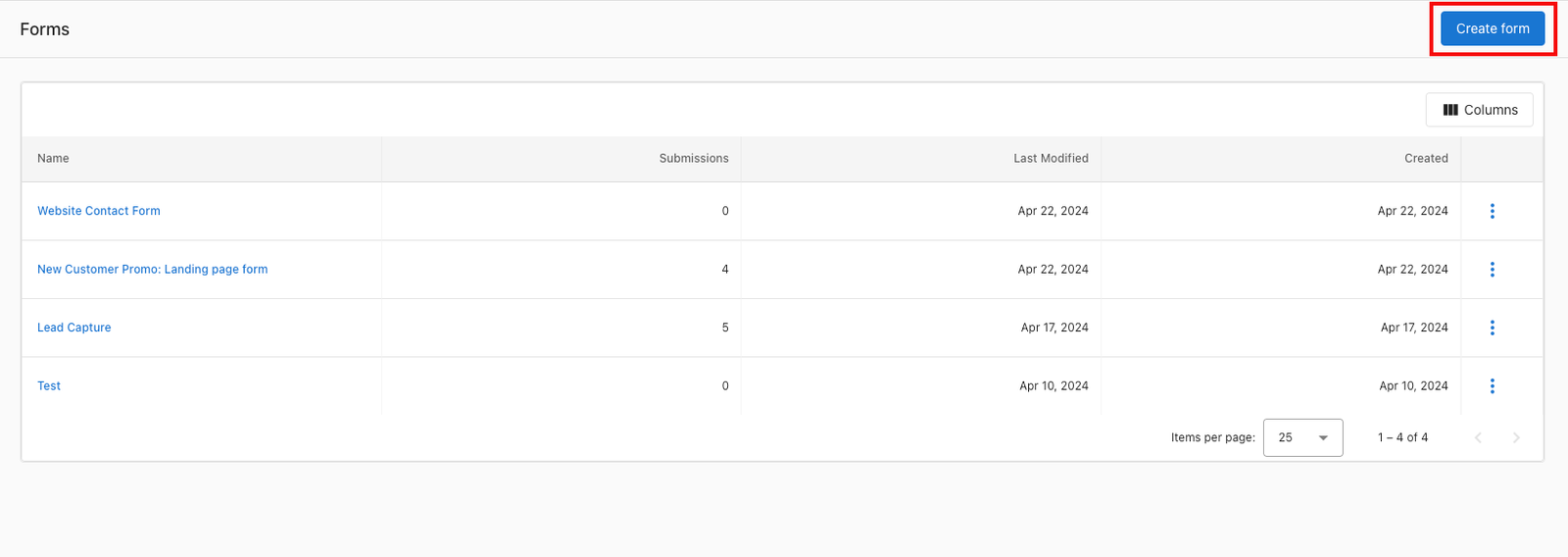
Step 1: Navigate to CRM > Forms.
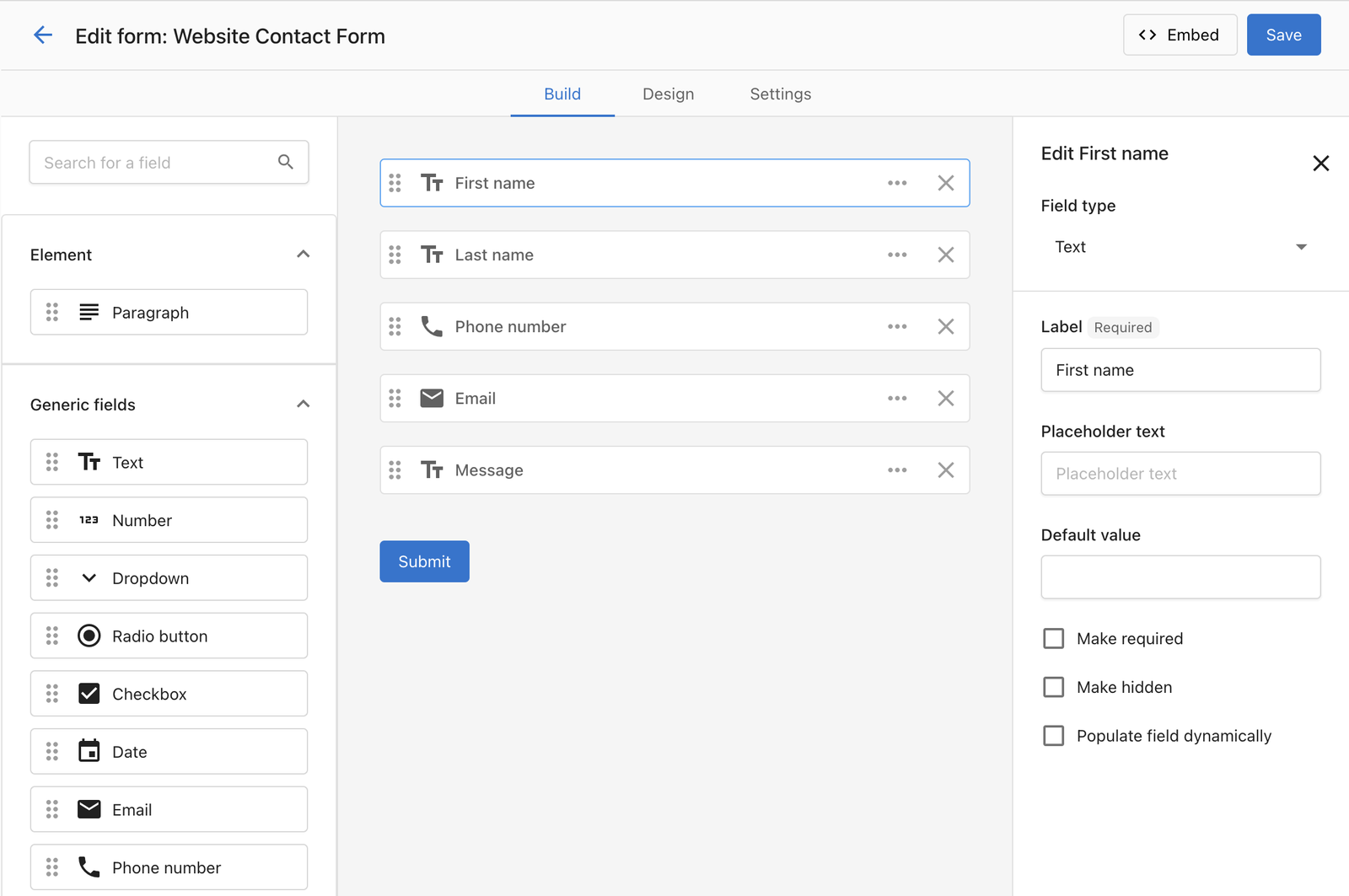
Add the key fields you’d like to capture. Keep forms short—conversion rates drop as fields increase.
- All field types: default value, required, hidden, and dynamic prefill via URL query parameter (e.g.,
?campaign=spring-promopre-fills a field namedcampaign). - String field: switch between open text, drop-down, or radio options.
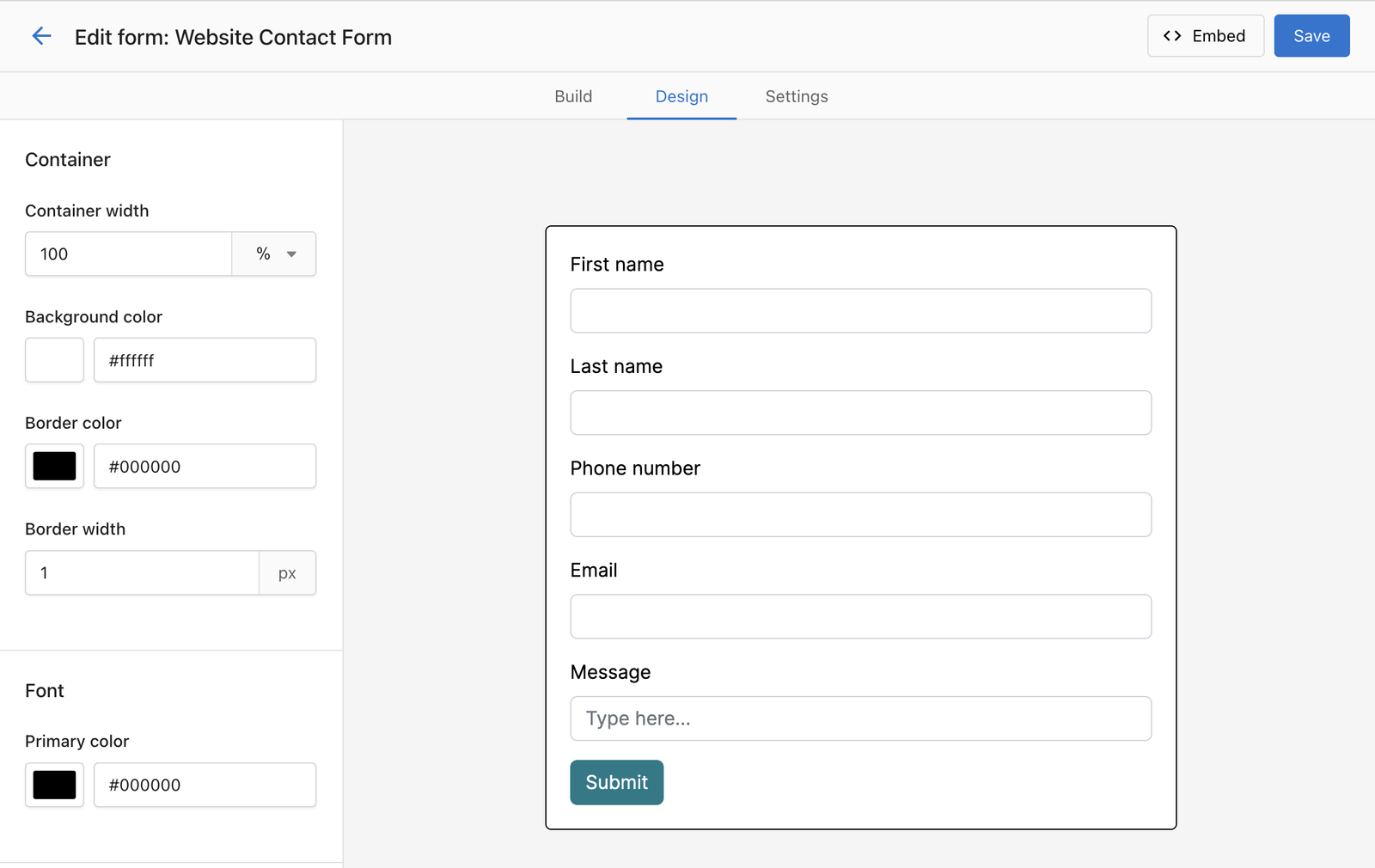
Step 2: Customize the styling to match your website.
You may want to set the form width to 100%, and then manage the width using your page builder. In the Design tab, style the container, fonts, and button.
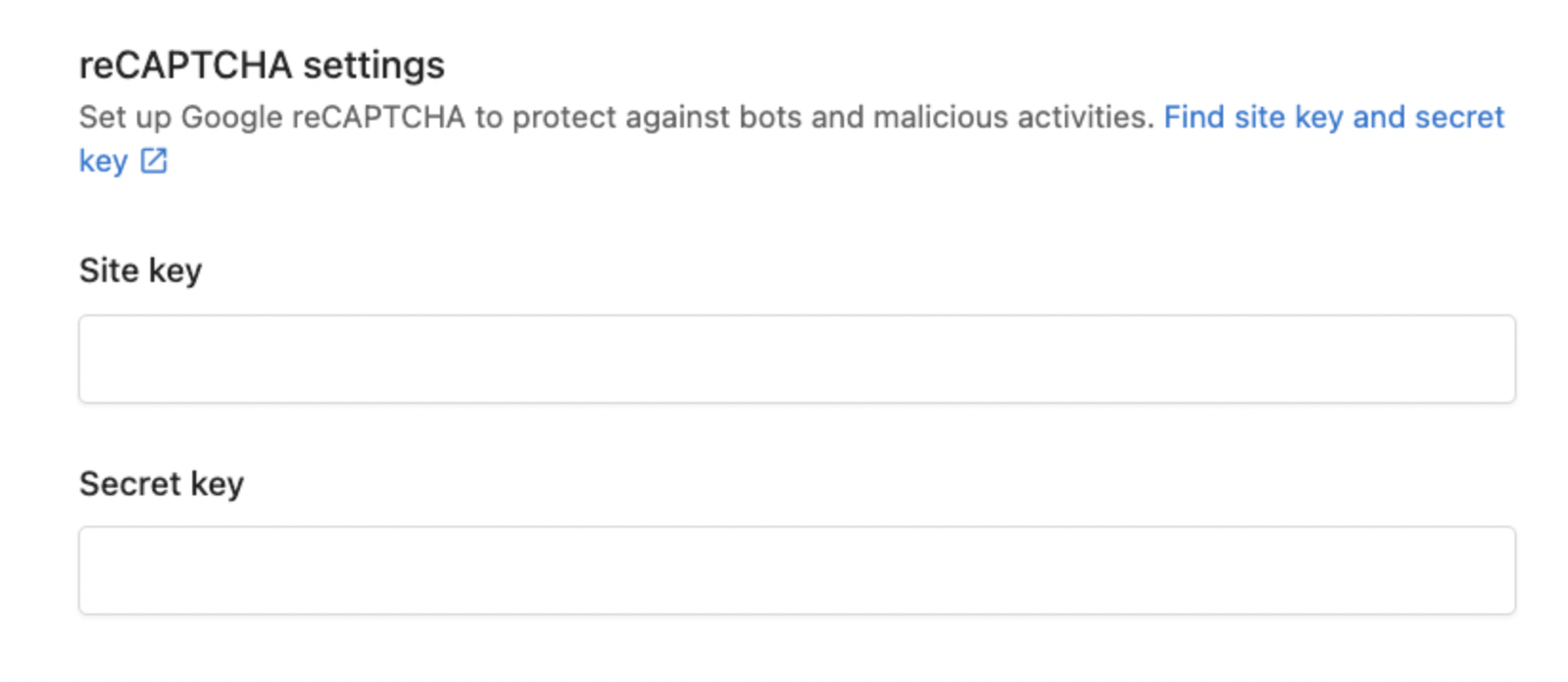
Step 3: Set up reCAPTCHA in the form to prevent Spam.
In the form builder, under Settings, use the reCAPTCHA section. After generating the site key and secret key, components activate (the process may take a few minutes).
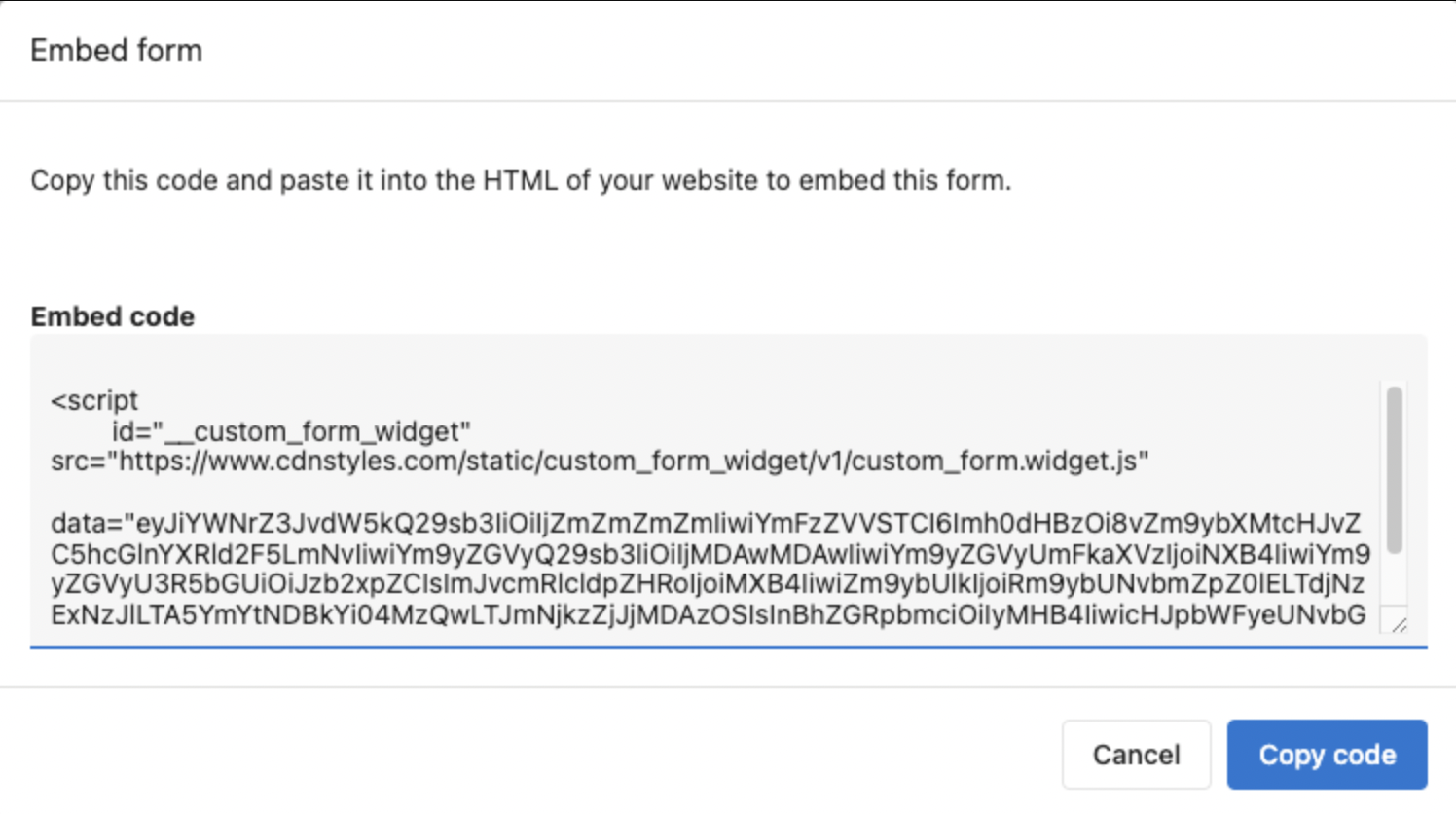
Step 4: Copy the embed code for the form, and place it on your website landing page or contact page.
If using WordPress (e.g., Divi), add a Code block and paste the embed code.
Step 5: Test your form, to confirm that a contact is captured in the CRM.
Submit the form yourself and verify that a contact appears in CRM > Contacts and a conversation opens in Inbox.
Frequently Asked Questions (FAQs)
My form isn’t always capturing UTM fields; why might that be?
UTM parameters must still be in the browser’s address bar at submission. If visitors navigate away and your site doesn’t preserve UTMs, they can be lost. Tactics: keep landing pages link-light, or implement UTM persistence.