
Manage Command Hub CRM Tasks in Corpus Christi
Tasks help you plan and prioritize the actions required to move deals forward—calls, emails, notes, follow-ups, and more.
Why use Tasks?
- Keep daily follow-ups organized and on schedule
- Assign ownership and track progress across your team
- Improve visibility with saved views and filters
- Move deals faster with a focused task queue
What’s Included with Tasks?
- Create from profiles (Contact, Company, Opportunity)
- Create from Tasks table for quick entry
- Task fields: title, instructions, owner, priority, due date/time
- Associations: link tasks to related contacts, companies, and opportunities
- Filters & saved views for status, priority, owner, due date, and tags
- Task Queue to start and complete tasks in sequence
Why Use Tasks in Command Hub CRM to Manage Follow-Ups Efficiently
Create from a Contact or Company
- Go to a Contact or Company profile.
- Click Add activity and choose Task.
- Add a task title, instructions, due date/time, owner, and associations; then click Log activity.
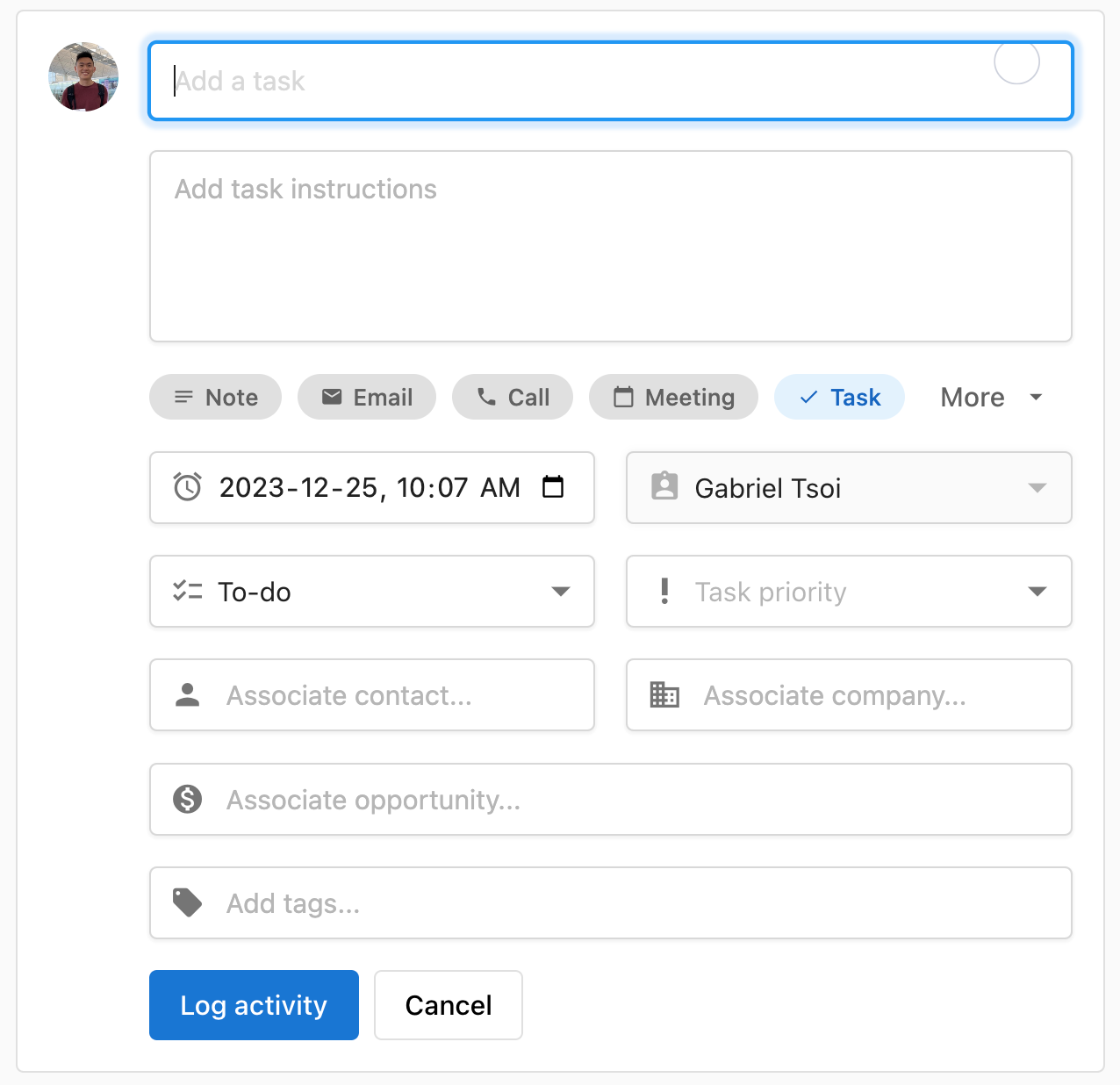
Create from the Task Table
- Go to CRM > Tasks and click Create task.
- Enter title, owner, due date/time, priority, associations, and tags.
- Click Create.
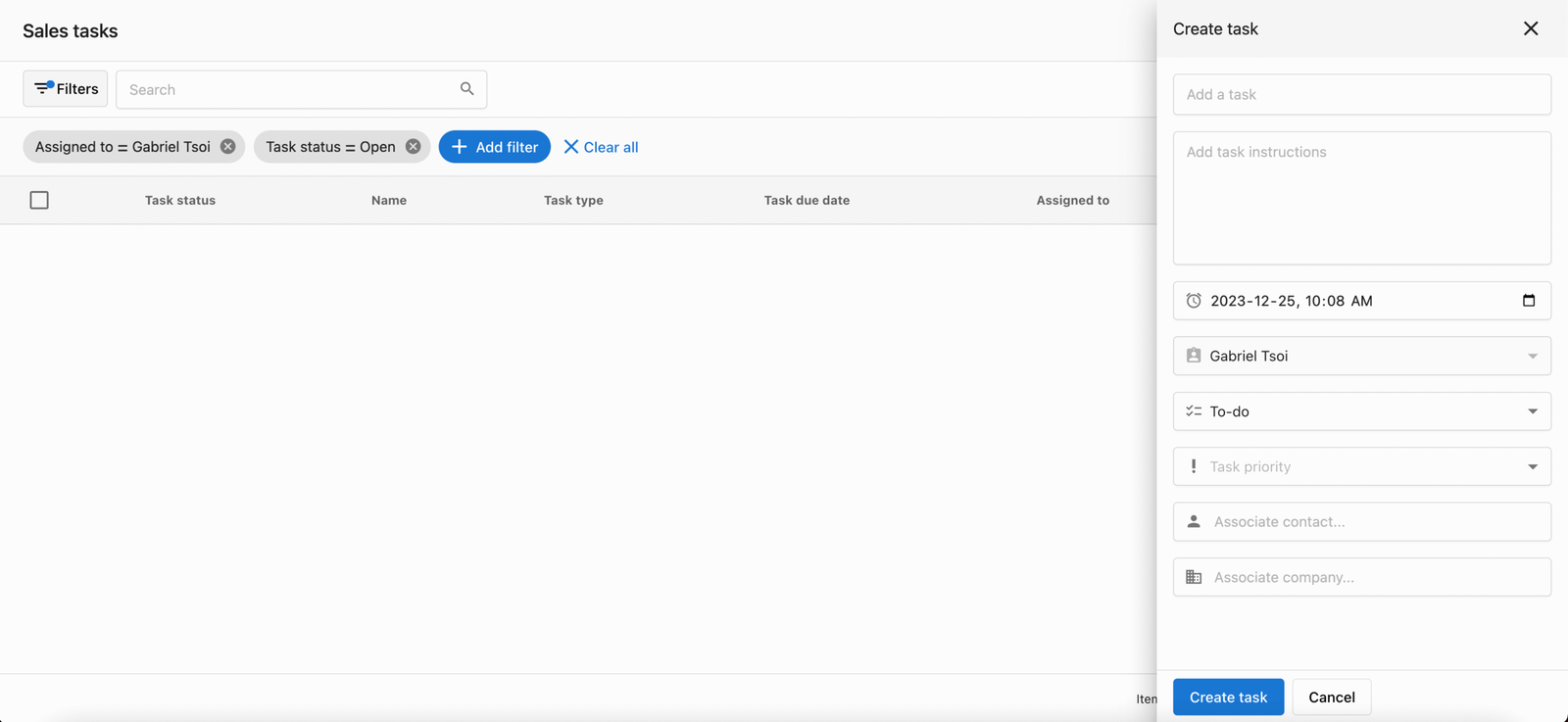
Tip: Use tags and priority to organize your daily work, then save a view for today’s focus tasks.
View and Filter Tasks
- Go to CRM > Tasks.
- Use Filters (owner, status, priority, due date, associations, tags).
- Save common filters as Views for quick access.
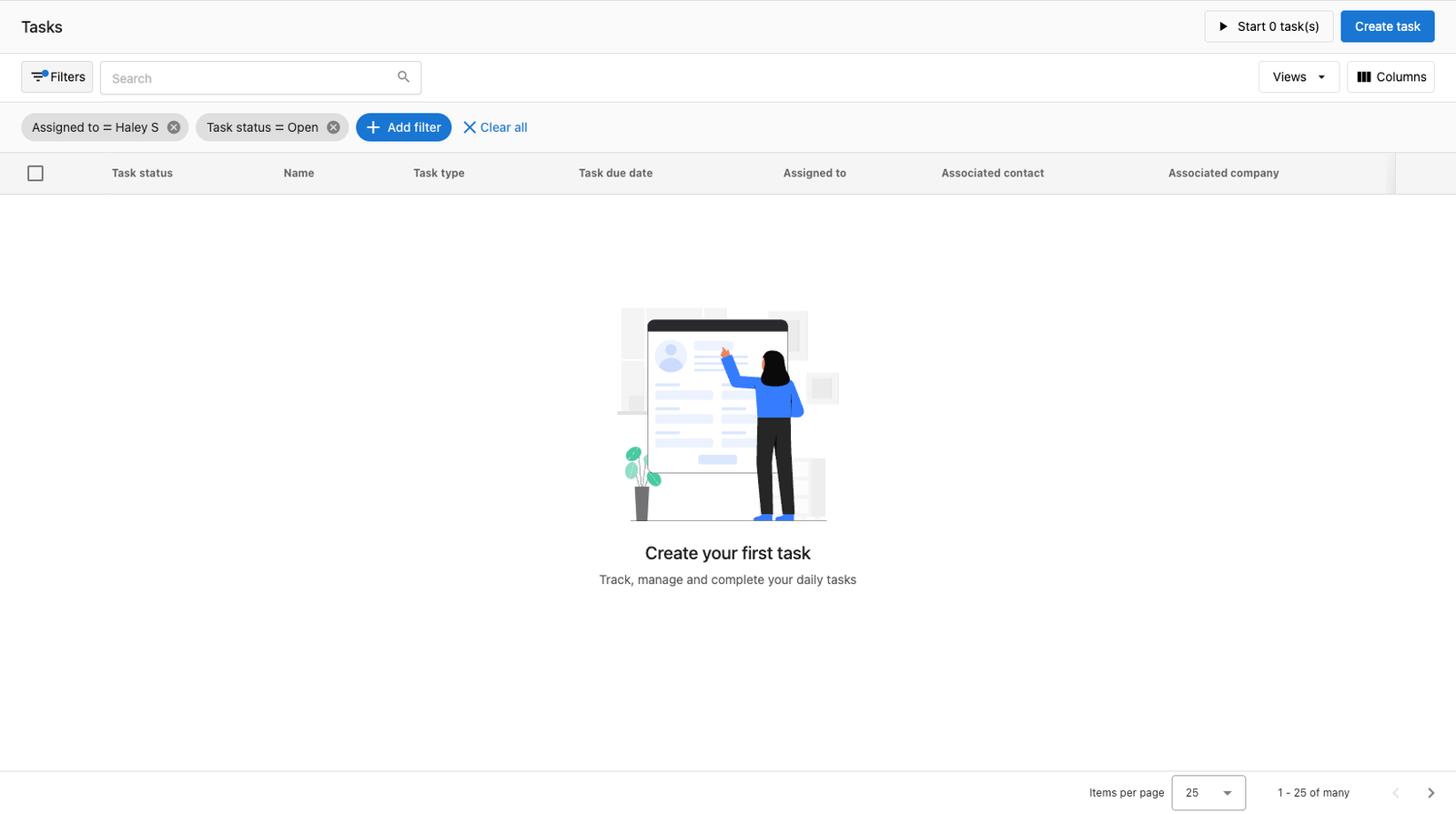
Edit, Complete, or Delete Tasks
You can update tasks from the profile timeline or directly from the Tasks table.
- Edit: open the task, change fields, and save.
- Complete: mark done from the row or task details.
- Bulk actions: multi-select rows to edit owner, status, due date, or delete.
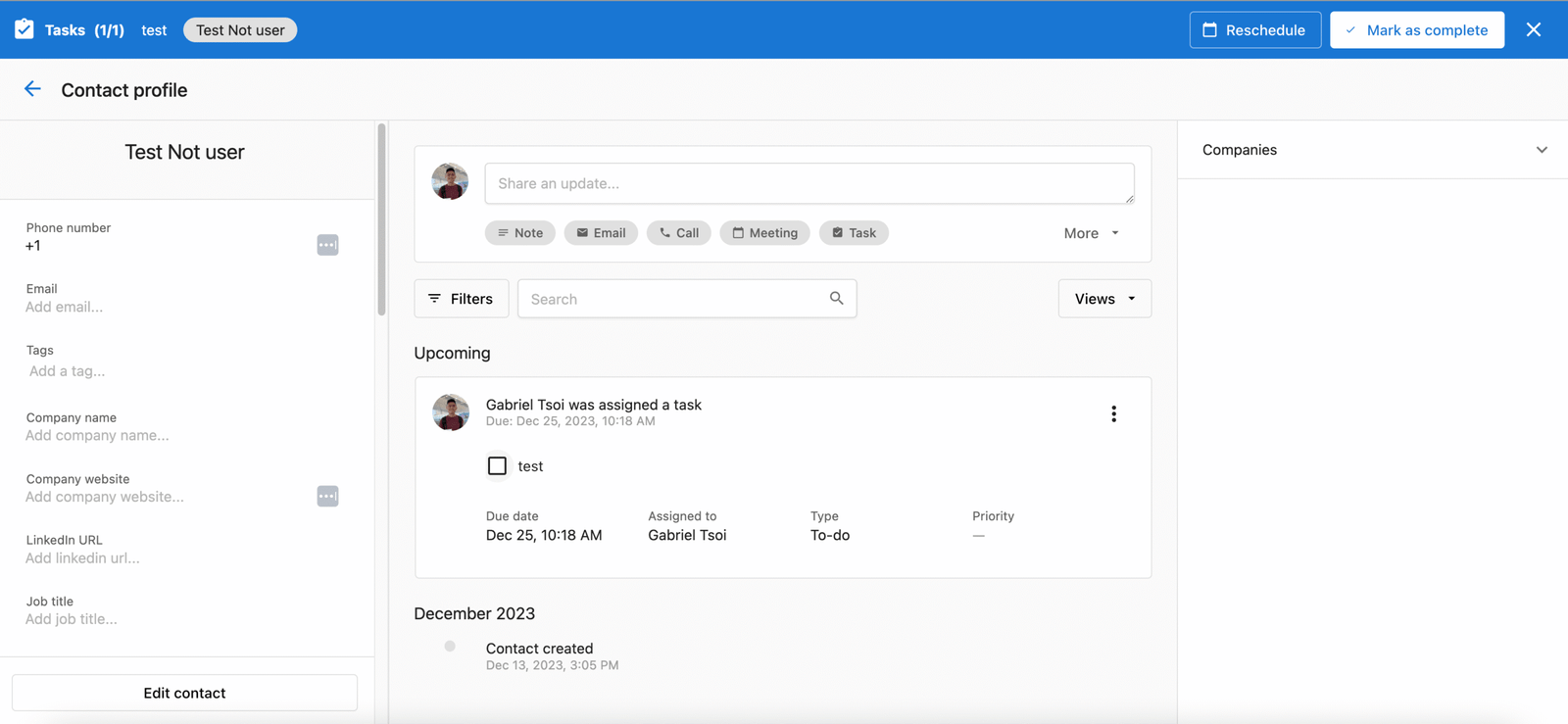
Note: Permissions apply. Owners and admins can always see their tasks; team visibility may vary by workspace settings.
Work Faster with Task Queue
- In the Tasks table, filter to a prioritized list (owner, due date, status).
- Select records and click Start tasks to open a focused queue.
- Complete each task, then use the navigation controls (or skip) to jump between tasks.


Frequently Asked Questions (FAQs)
Is task creation available on multiple records?
Yes. Create tasks from contacts, companies, and opportunities, or from the Tasks table.
Can I filter by owner, status, and due date?
Yes. Use Filters in the Tasks table. Save common filters as Views for one-click access.
Is there a quick way to work through tasks?
Yes. Use Start tasks to launch the Task Queue and process items back-to-back.
Do calls, emails, meetings, and conversations count as tasks?
You can log these as activities and also create follow-up tasks linked to the related record.
Can I bulk change due dates and priorities later?
Yes. Multi-select tasks in the table to bulk update due date, owner, priority, and other fields.
Previous:Activity feed
Next:Lists